# TouchDesigner インストール

[![image-3.png](https://book.a10-objects.jp/uploads/images/gallery/2026-04/scaled-1680-/YeHimage-3.png)](https://book.a10-objects.jp/uploads/images/gallery/2026-04/YeHimage-3.png)

OSC開発で使用するビジュアルプログラミング環境のTouchDesignerのインストール方法です。

このアプリケーションは商用では有料となります。  
  
macOS用のTouchDesignerが099(2017年)から使えるようになったのでダウンロードしインストールします。  
細かいインストール方法などは、他のサイトを参考にしてください。ここでは、最低限の覚え書き程度です。

---

1.ダウンロード

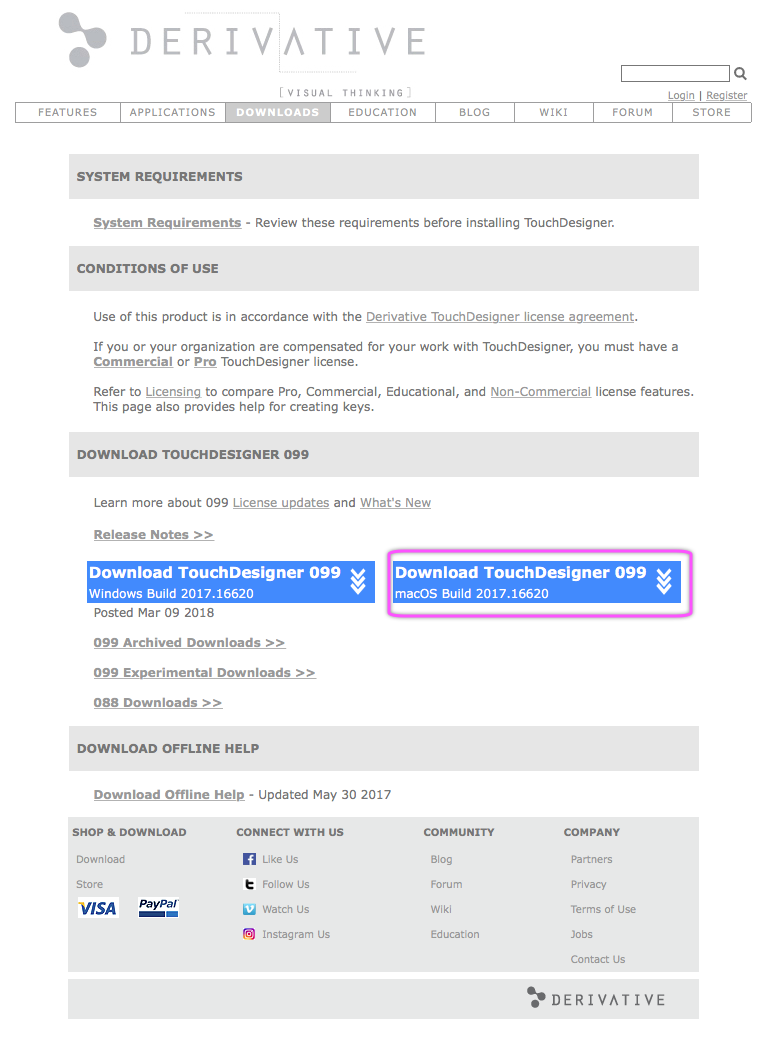
TouchDesignerの開発元であるDerivativeからmacOS版099をダウンロードします。

バーションは「099」ではなく、年度+ビルド番号?で表示されるようです。したがって、たまにチェックして新しいバージョンを確認しましょう。  
  
 [https://www.derivative.ca](https://www.derivative.ca/ "https://www.derivative.ca")  
 macOS版099 ダウンロード

[![1522584235.png](https://book.a10-objects.jp/uploads/images/gallery/2026-04/scaled-1680-/1522584235.png)](https://book.a10-objects.jp/uploads/images/gallery/2026-04/1522584235.png)

[![1522584263.png](https://book.a10-objects.jp/uploads/images/gallery/2026-04/scaled-1680-/1522584263.png)](https://book.a10-objects.jp/uploads/images/gallery/2026-04/1522584263.png)
2.macOS版099 のインストール

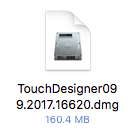
<div class="j-module n j-text " id="bkmrk--5"></div><div class="j-module n j-textWithImage " id="bkmrk--6"></div>ダウンロードしたdmgファイルを開きます。

[![1522584374.png](https://book.a10-objects.jp/uploads/images/gallery/2026-04/scaled-1680-/1522584374.png)](https://book.a10-objects.jp/uploads/images/gallery/2026-04/1522584374.png)

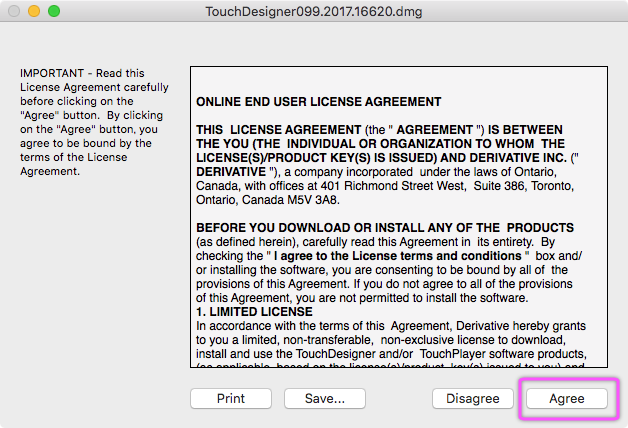
<div class="j-module n j-textWithImage " id="bkmrk-%E3%83%A9%E3%82%A4%E3%82%BB%E3%83%B3%E3%82%B9%E3%82%92%E7%A2%BA%E8%AA%8D%E3%81%97%E3%81%BE%E3%81%99%E3%80%82"><div><div class="cc-m-textwithimage-inline-rte" data-action="text" data-name="text" id="bkmrk--8"></div></div><div class="cc-clear">ライセンスを確認します。</div><div class="cc-clear">  
</div></div>[![1522584437.png](https://book.a10-objects.jp/uploads/images/gallery/2026-04/scaled-1680-/1522584437.png)](https://book.a10-objects.jp/uploads/images/gallery/2026-04/1522584437.png)

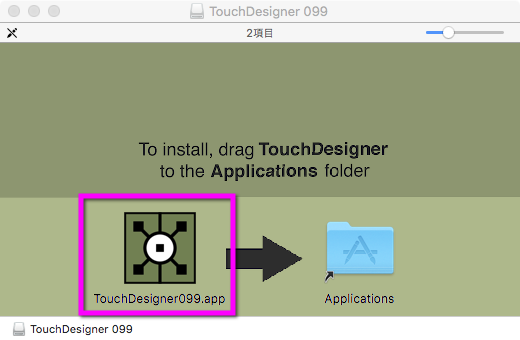
アプリケーションをアプリケーションフォルダにコピーします。

[![1522584481.png](https://book.a10-objects.jp/uploads/images/gallery/2026-04/scaled-1680-/1522584481.png)](https://book.a10-objects.jp/uploads/images/gallery/2026-04/1522584481.png)
3.起動とユーザー登録  
  
<span style="color: rgb(224, 62, 45);">**ユーザー登録は必須です。**</span>登録しないと使えません。

アプリケーションを起動します。

[![image-4.png](https://book.a10-objects.jp/uploads/images/gallery/2026-04/scaled-1680-/KKkimage-4.png)](https://book.a10-objects.jp/uploads/images/gallery/2026-04/KKkimage-4.png)

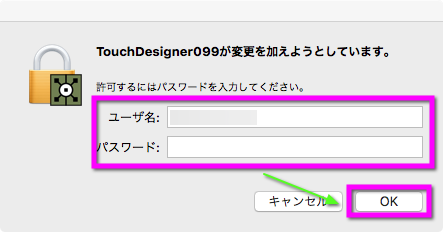
Finderの認証画面。

[![1522584615.png](https://book.a10-objects.jp/uploads/images/gallery/2026-04/scaled-1680-/1522584615.png)](https://book.a10-objects.jp/uploads/images/gallery/2026-04/1522584615.png)
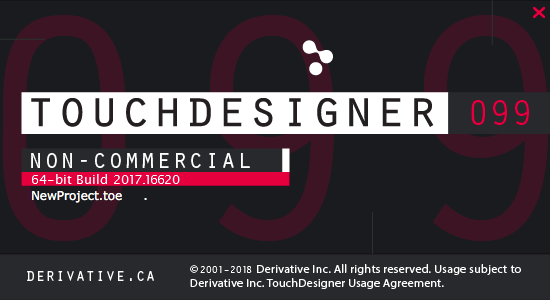
アプリケーションの起動中の画面です。

[![1522584687.png](https://book.a10-objects.jp/uploads/images/gallery/2026-04/scaled-1680-/1522584687.png)](https://book.a10-objects.jp/uploads/images/gallery/2026-04/1522584687.png)
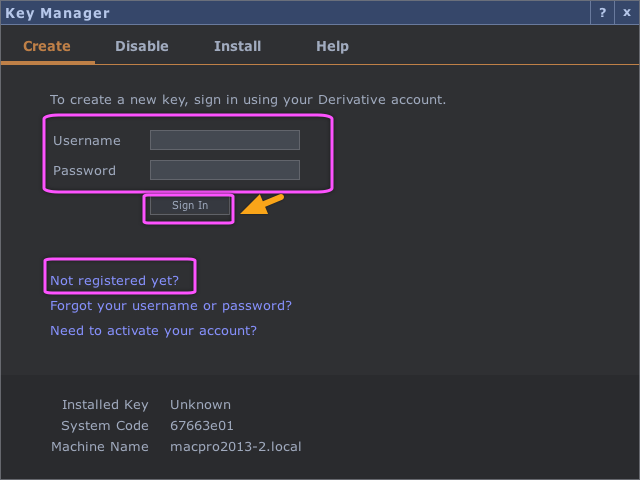
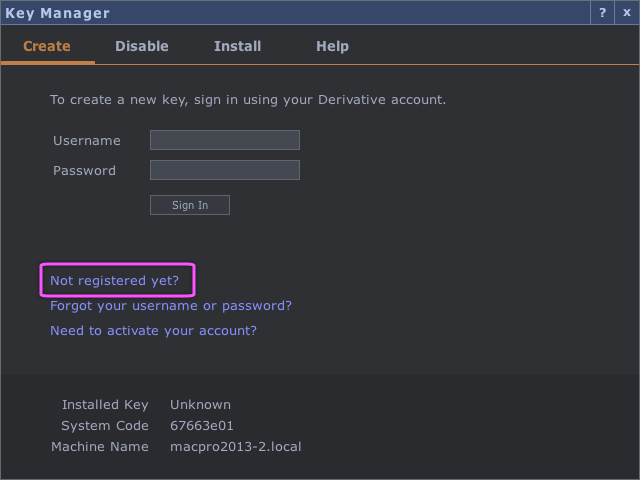
既にユーザー登録を済ませている方は「Username/Password」に入力してアプリを起動します。  
新しいユーザーなら「Not registerd yet?」をクリックしてWebページからユーザー登録を開始します。

[![1522584764.png](https://book.a10-objects.jp/uploads/images/gallery/2026-04/scaled-1680-/1522584764.png)](https://book.a10-objects.jp/uploads/images/gallery/2026-04/1522584764.png)
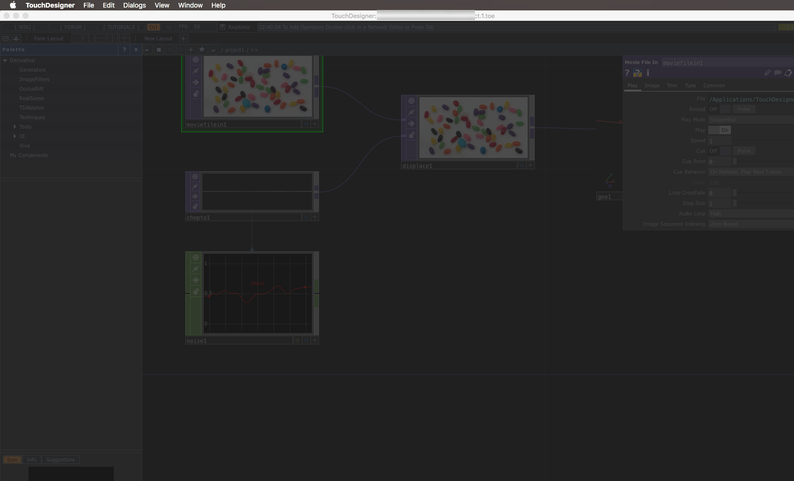
補足: ユーザー登録/ログインしない場合にもアプリは起動しますが、グレー表示になり操作はできません。

[![image.png](https://book.a10-objects.jp/uploads/images/gallery/2026-04/scaled-1680-/wjjimage.png)](https://book.a10-objects.jp/uploads/images/gallery/2026-04/wjjimage.png)
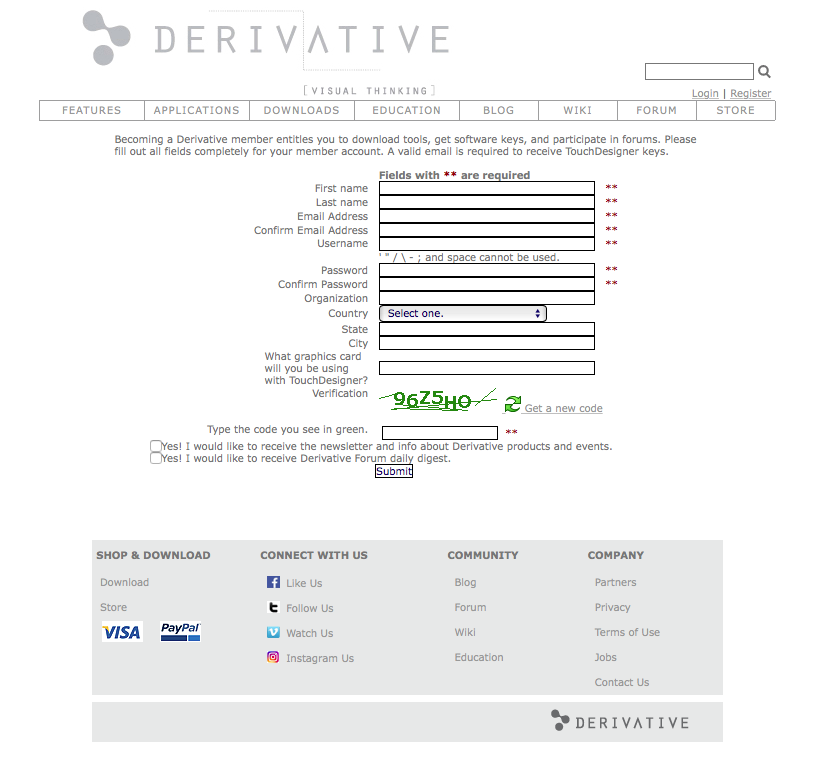
「Not registerd yet?」をクリック後のユーザー登録用のWeb画面  
  
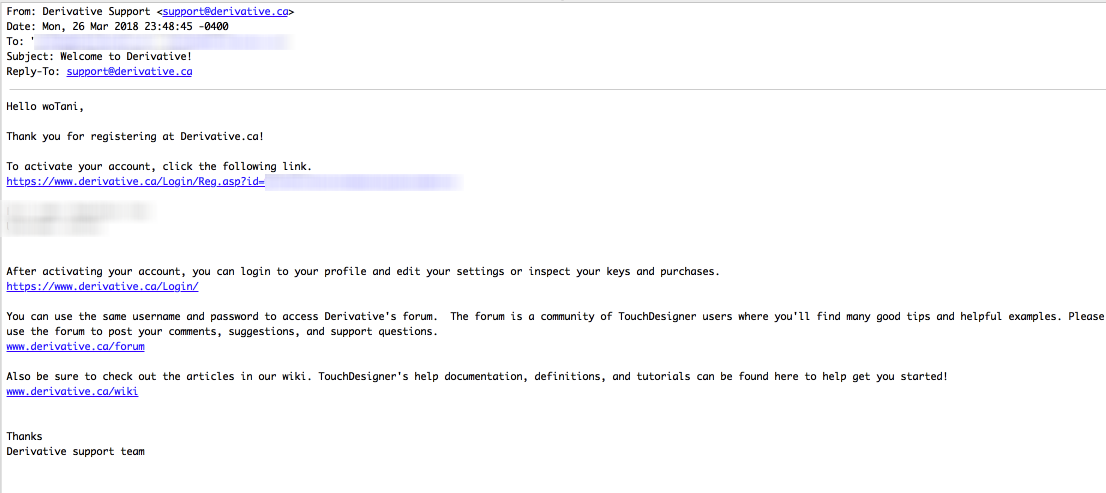
必要事項を入力して「submit」すると電子メールに確認のメールが届くのでアクティベーションを実行します。

[![1522584986.png](https://book.a10-objects.jp/uploads/images/gallery/2026-04/scaled-1680-/UC51522584986.png)](https://book.a10-objects.jp/uploads/images/gallery/2026-04/UC51522584986.png)
[![1522584997.png](https://book.a10-objects.jp/uploads/images/gallery/2026-04/scaled-1680-/1522584997.png)](https://book.a10-objects.jp/uploads/images/gallery/2026-04/1522584997.png)
[![1522585010.png](https://book.a10-objects.jp/uploads/images/gallery/2026-04/scaled-1680-/1522585010.png)](https://book.a10-objects.jp/uploads/images/gallery/2026-04/1522585010.png)
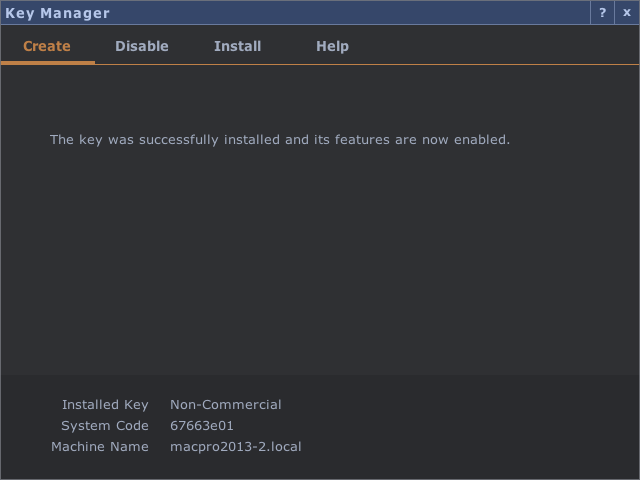
新しいユーザーでログインで入力するとKey Managerで非営利のキーが生成できるようになるので「Create Key」をクリックします。

完了すると次の画面のように完了画面が表示されます。  
ウィンドウ右上の「×」をクリックしてKey Managerを閉じます。

[![1522585069.png](https://book.a10-objects.jp/uploads/images/gallery/2026-04/scaled-1680-/1522585069.png)](https://book.a10-objects.jp/uploads/images/gallery/2026-04/1522585069.png)
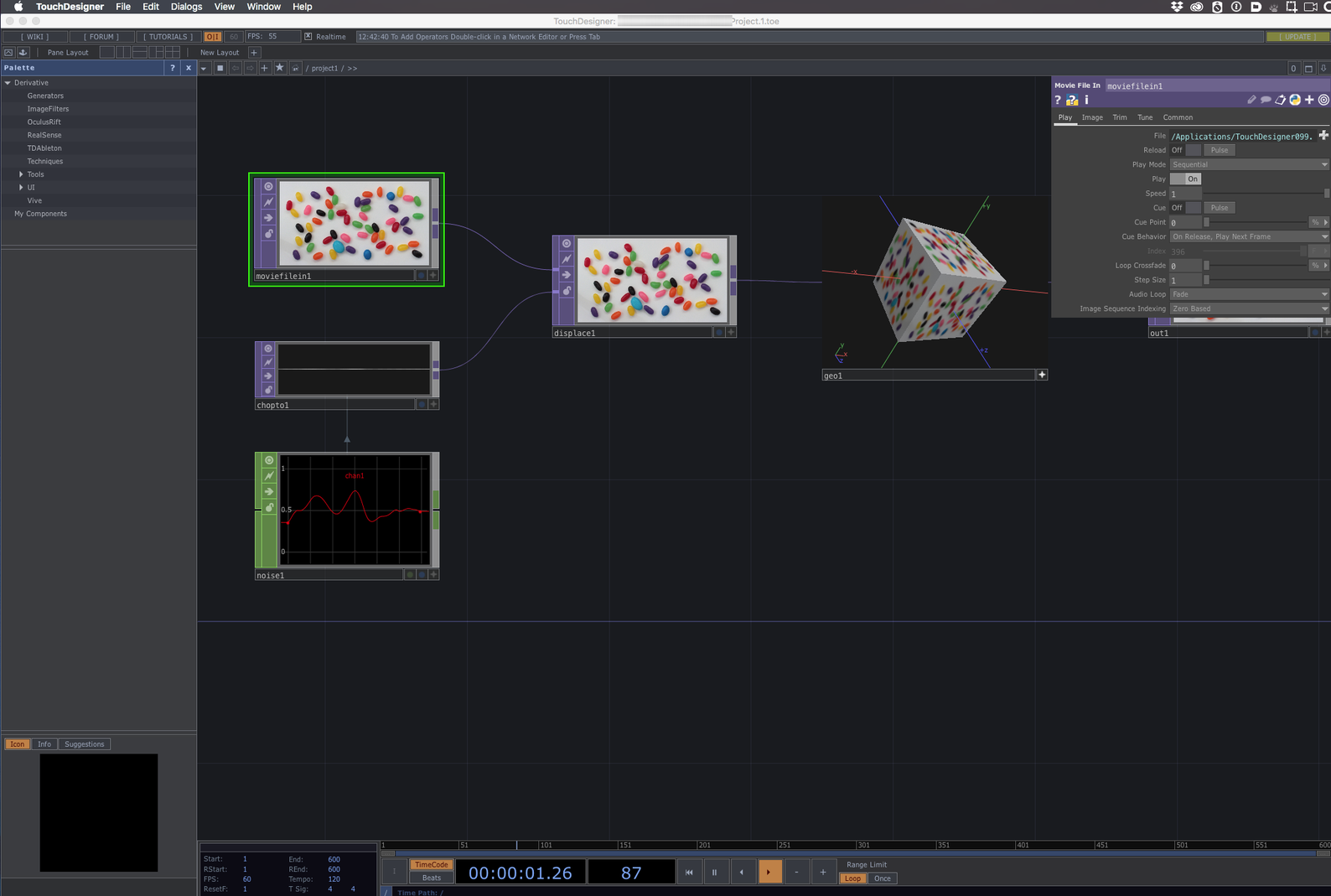
初期画面が表示されます。

[![image-1.png](https://book.a10-objects.jp/uploads/images/gallery/2026-04/scaled-1680-/W6Fimage-1.png)](https://book.a10-objects.jp/uploads/images/gallery/2026-04/W6Fimage-1.png)
---

以上で、インストール編は完了です。

それぞれのインストールに関しては、多くの方が記載されているのでこの辺で。。。

<div class="j-module n j-text " id="bkmrk--22"></div><div class="j-module n j-imageSubtitle " id="bkmrk--23"></div><div class="j-module n j-textWithImage " id="bkmrk--24"></div>